Odoo
OneDrive Automatic Backup – Odoo module
Automatic Odoo backups to your own OneDrive.
€49.00 VAT free
ViewOdoo
Print product labels with barcodes straight from the Odoo POS.
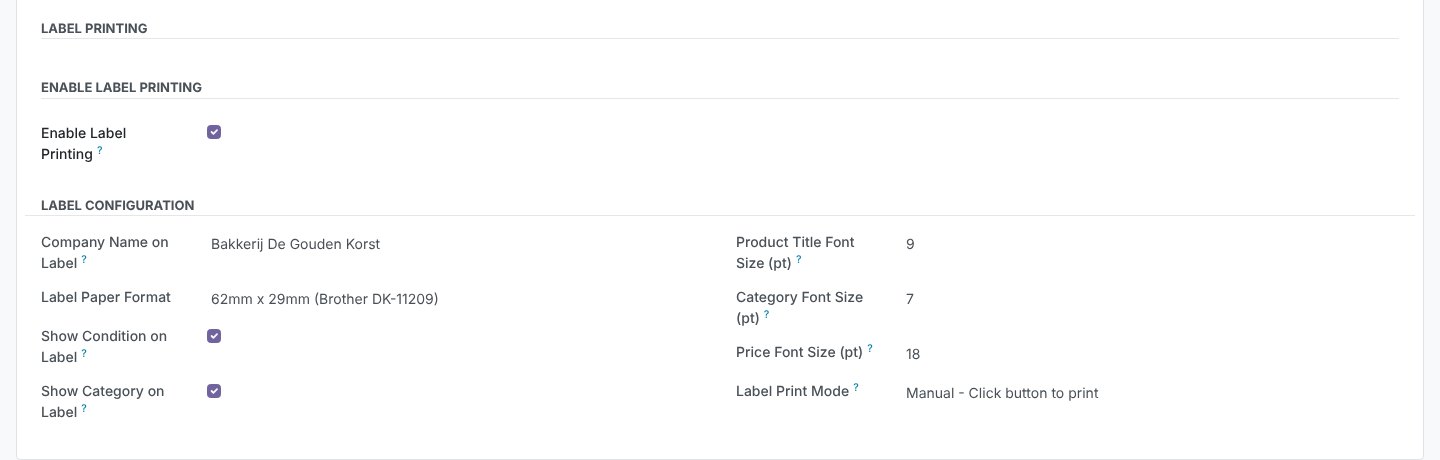
With POS Product Label Print you print product labels without leaving the POS. Select an order line, click the label button, choose how many labels you need (1 to 100) and the label is printed straight away.
The label contains the company name, an EAN-13 barcode, the product title, the condition (for example New or Second-hand), the category and the price. Handy for shops with second-hand items, buying at the counter or products without their own label.
Per POS you set which details appear on the label and which paper format you use.
| Platform | Odoo |
|---|---|
| Version | 17.0.1.0.2 |
| Requirements | Odoo 17.0 · point_of_sale and product modules · allow popups in the browser |
| File size | 17 KB (zip) |
| Delivery | Digital: download immediately after payment in your account and by email |
| Support | info@daveswebsites.nl |
Any printer you can use through your browser. The labels are laid out for 62x29 mm, 57x32 mm and 62x100 mm, for example for a Brother label printer.
EAN-13. If a product number has another length it is padded or cut to a valid EAN-13.
The product’s sales price (excl. tax, as Odoo stores it). Check this for your tax situation before you go live.
The module is built and tested for Odoo 17.0.
The label is printed in a new browser window. Allow popups for your Odoo address.
As soon as your payment succeeds you can download the zip file on the confirmation page and in your account under Downloads. You also receive an email with the download link. If you pay by bank transfer, the downloads are released as soon as we have received your payment.
Yes. After payment your invoice is available in your account under Invoices. You can print it or save it as a PDF.
Send an email to info@daveswebsites.nl describing the problem and your order number. You will get a personal reply.
Odoo
Automatic Odoo backups to your own OneDrive.
Odoo
Design your receipt visually, with logo and barcode, without XML.
Odoo
Manage product, POS and eCommerce categories in one central place.
Need an adjustment or a completely custom module or plugin? We build it for you.